Are you finding that your order‑related emails aren’t landing with the right people? Managing multiple teams, regions, or custom workflows? Then understanding where to configure your order email recipients is essential!
Order email recipient settings allow you to control exactly who receives order notifications—globally, per warehouse, or per form. This flexibility ensures that the right teams stay informed without manual intervention.
What Are Order Email Recipient Settings?
Order email recipient settings determine where order-related emails are sent when an order is placed, dispatched, or completed. These settings can be configured at three different levels, each designed to support a different workflow or business structure.
You can choose to send emails to:
- A single, central inbox for all order emails (global level)
- Different teams per region or warehouse
- Unique recipients depending on the specific order form being used
Below, we break down each option to help you choose the one that best fits your needs.
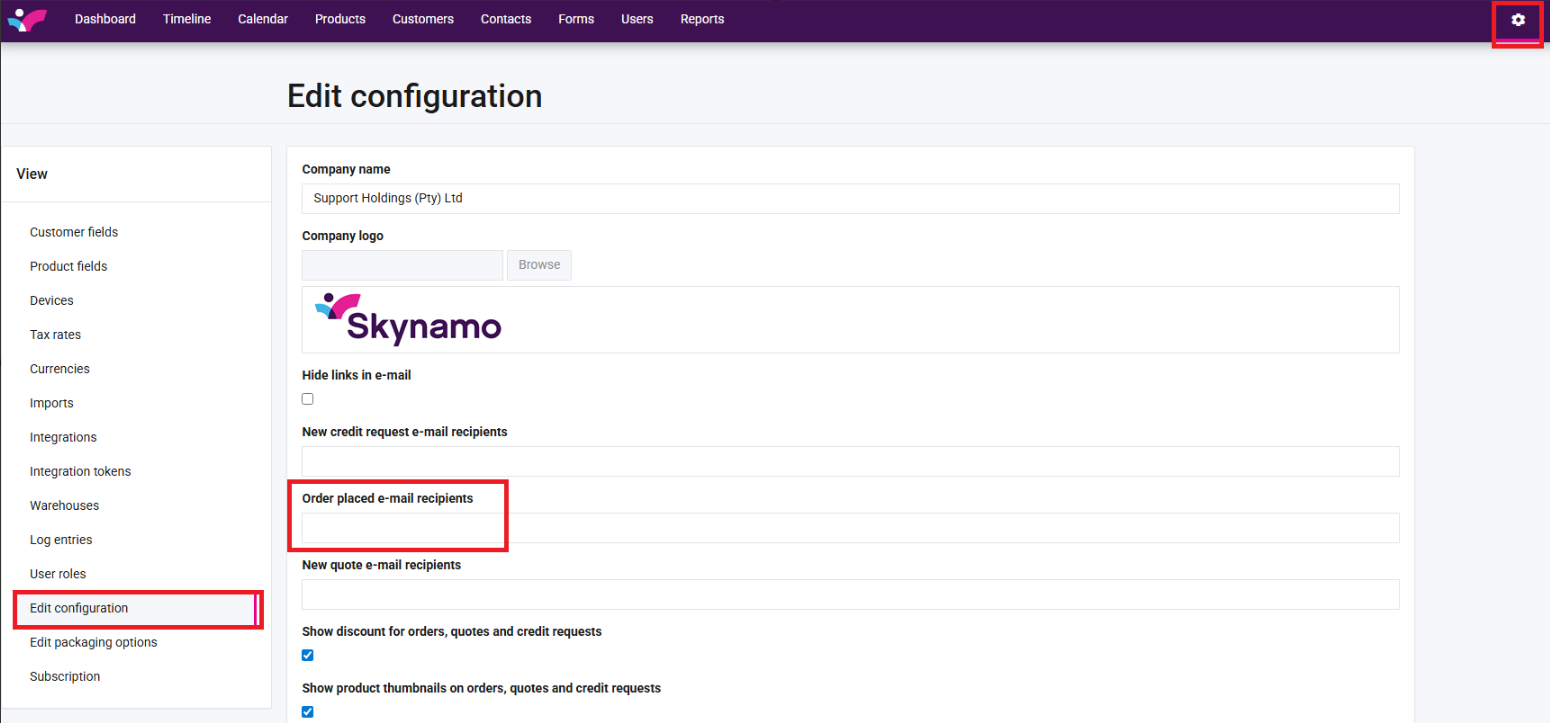
1. Global Email Recipients
Global email recipients are the highest-level configuration. This is ideal if your business has a central operations or admin team that needs visibility of all order‑related communication.
You can manage this by going to Settings -> Edit Configuration:
2. Region or Warehouse-Level Recipients
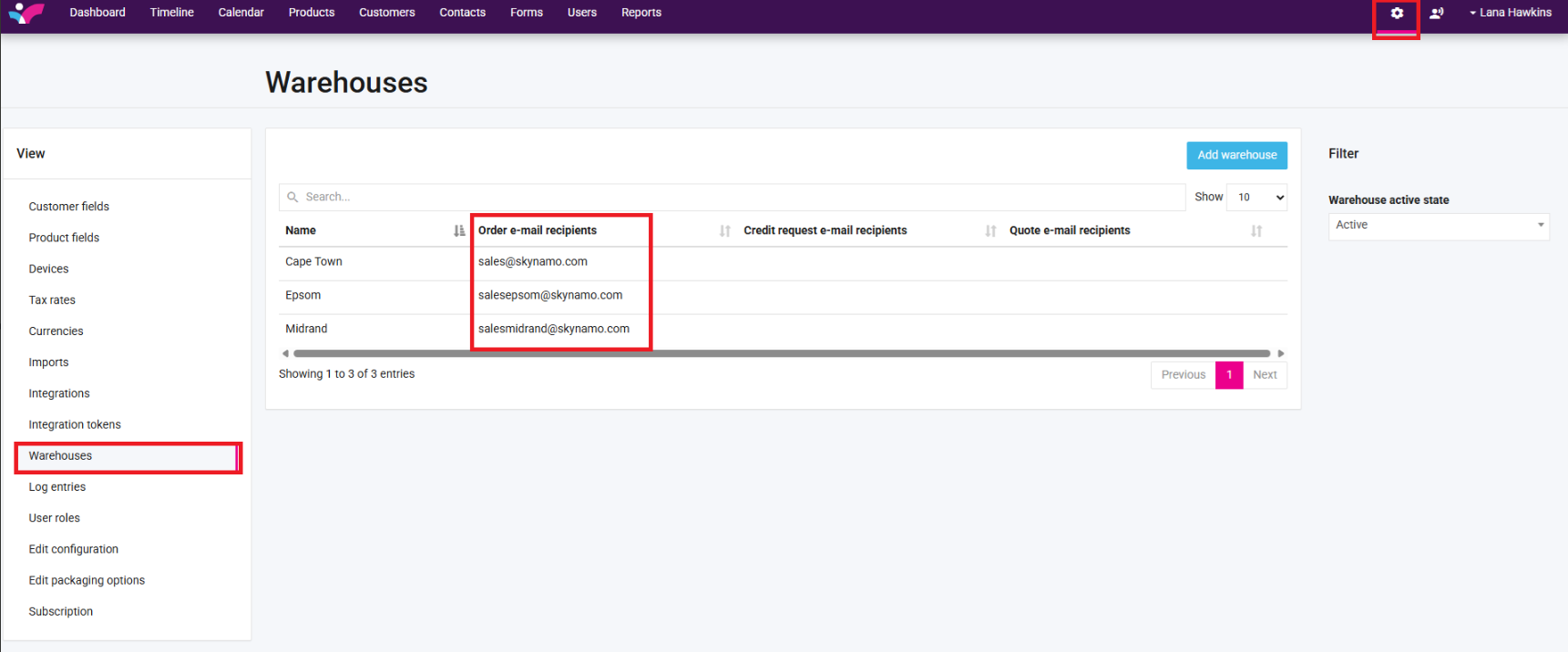
If your workflow involves multiple warehouses, depots, or regional hubs, you may not want every location to receive every order email. Warehouse‑level recipient settings allow you to specify which warehouse receives which order notifications.
This is especially helpful when:
- Different warehouses manage their own stock
- Regional teams process their own orders
- Managers only need visibility into orders relevant to their area
These settings live under:
Settings -> Warehouses -> Order email recipients
3. Form-Specific Recipients
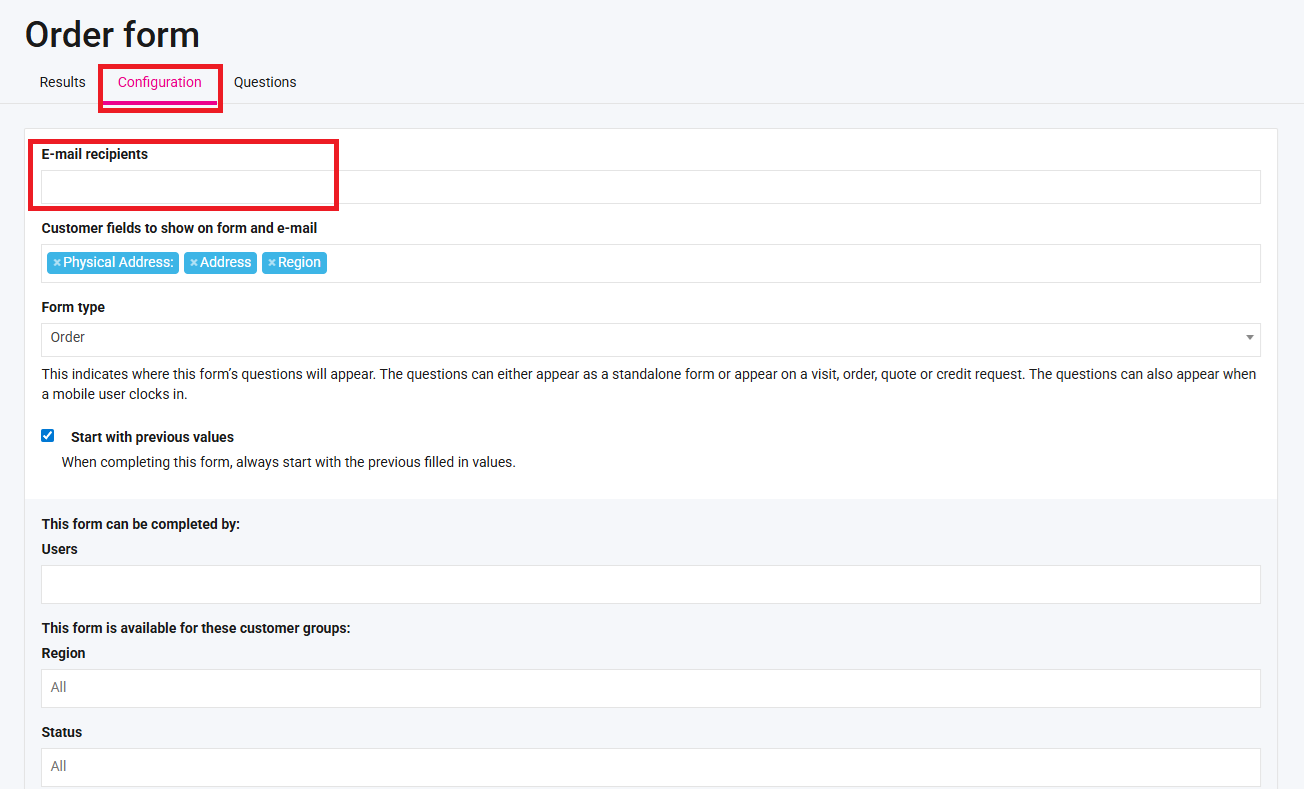
If you have multiple forms for different customers, user groups, or workflows, you can configure email recipients per form for maximum flexibility. Learn more about configuring forms here: How to configure individual forms
This is useful when:
Internal teams use separate forms with different notification needs
You run multiple workflows (e.g., each group of customers or users have their own order form)
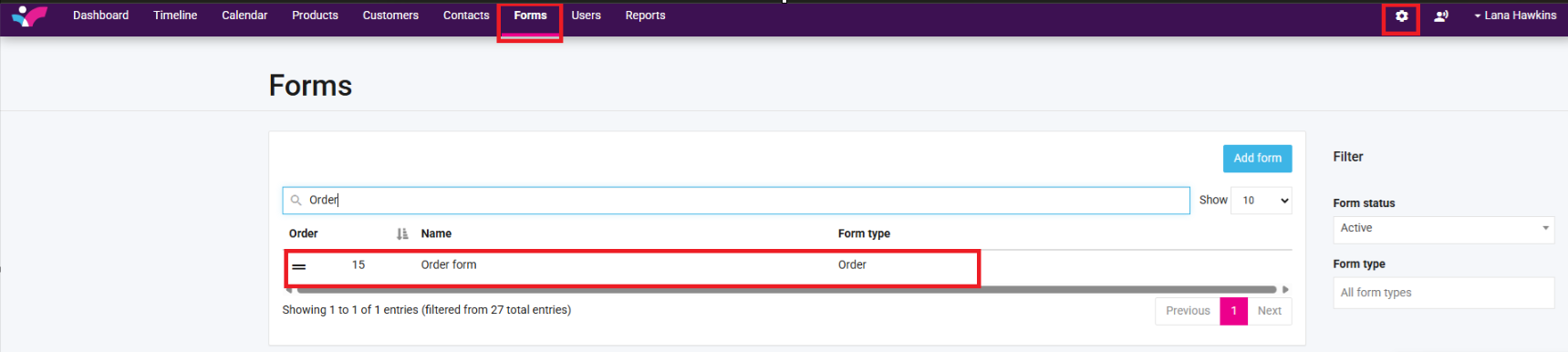
These settings can be found under:
Forms → Select Form → Configuration:
Was this article helpful?
That’s Great!
Thank you for your feedback
Sorry! We couldn't be helpful
Thank you for your feedback
Feedback sent
We appreciate your effort and will try to fix the article