
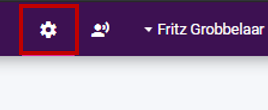
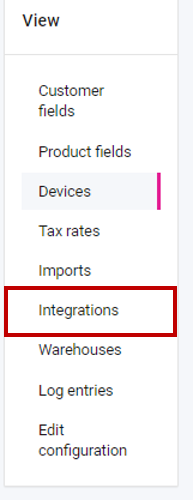
Navigate to the settings gear at the top right, and on the settings page select Integrations from the left-hand menu.
Click on Integrations in the panel on the left
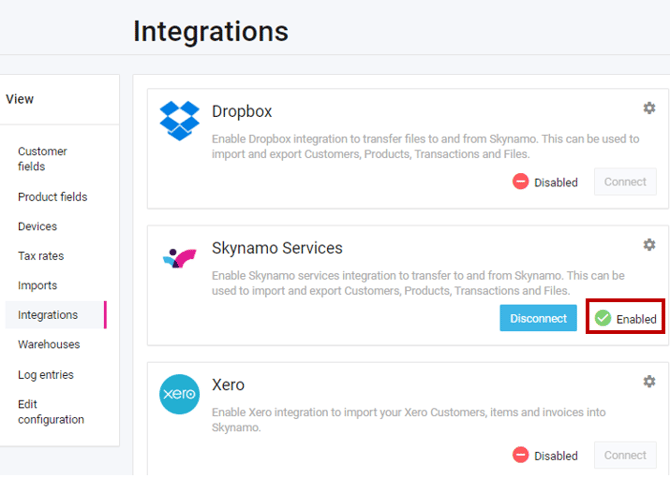
Identify the active integration, you will be looking for the "Enabled" keyword. In the below-mentioned case, the Skynamo Services connector is being used.
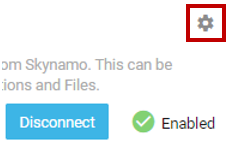
Click on the gear in the top right-hand corner of the active integration.
You will then see a page similar to this:
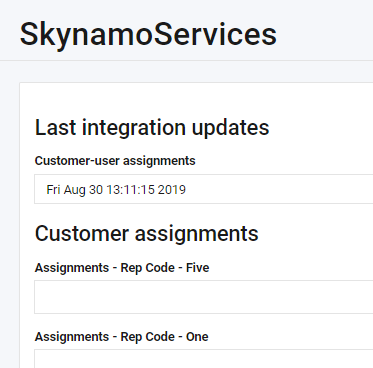
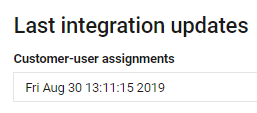
If Integration user assignments are active, the block "Customer-user assignments" with a timestamp will be visible. This timestamp reflects the last time this configuration was read. It's read every time the customers are being processed by the middleware. This typically happens hourly.
Below this, there will be a heading called "Customer assignments" with the boxes to allocate the Skynamo users to the customer fields. The Customer assignments contains 2 pieces of information:
1) The Assignment from your company’s ERP, in this case “Rep Code – Five”
2) The User names of your users in Skynamo that the Rep codes should match to, which in the example below is still blank.
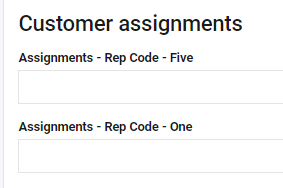
Click on the block below the Rep code, and select the correct user in Skynamo that is assigned to that code.
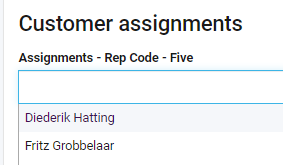
Once done, it should look like this:
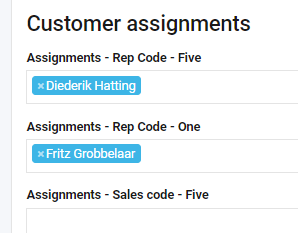
Once configured, click on the "Save" button near the bottom of the page
The new allocation configuration will take effect shortly after the next time your integration runs/syncs.