
After successfully following the steps in the article, Installing the mSeller App for the first time (iPad), we need to log in using the credentials provided by support via email.
Navigate out of the App Store and go to Settings on your iPad. 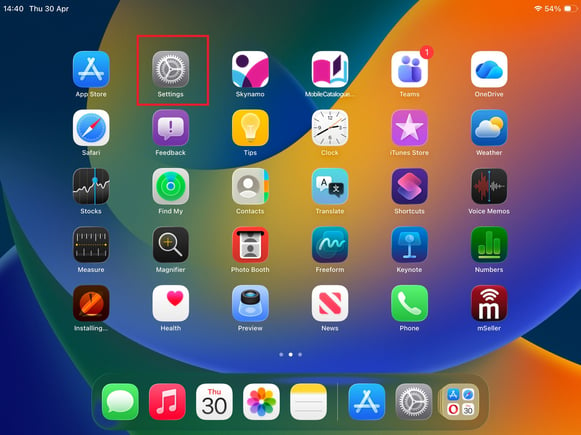
Once you are there, scroll all the way down the list to mSeller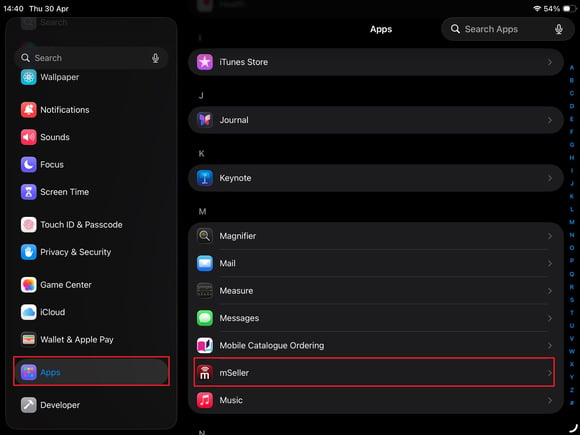
Copy the provided license key and paste it into the relevant field. You can find this information either on the email from Support, or it will be supplied to you by your manager. NB: Be careful that you don't copy any extra characters
Paste the license key, navigate out of settings and open the mSeller app on your device.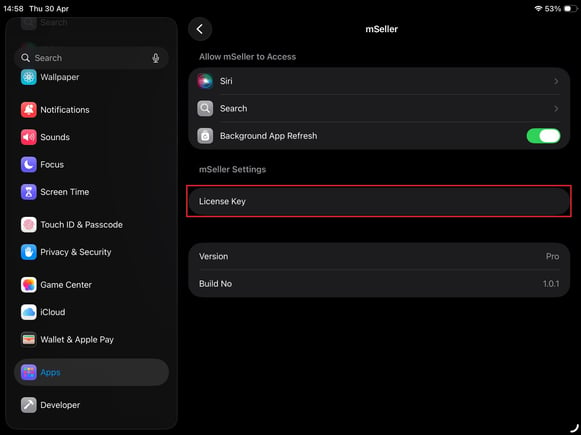
You will see a message 'license key modified'. Tap OK to clear the message. This will kick you out of the app.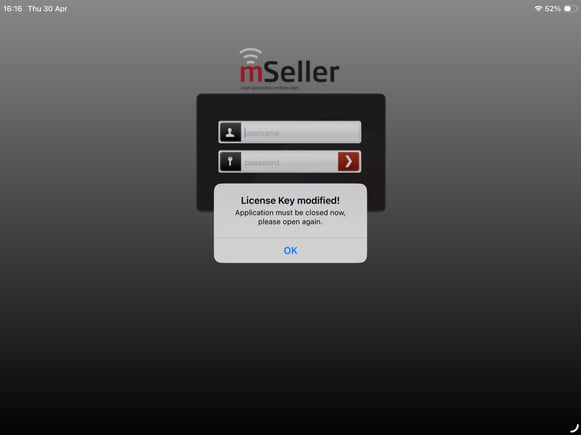
Once this has been done. Obtain your credentials from the same source as the license key used previously. Open the app again and add your credentials (Username and Password) on the login screen.
You should receive the following message. This is normal as your device has automatically been blocked.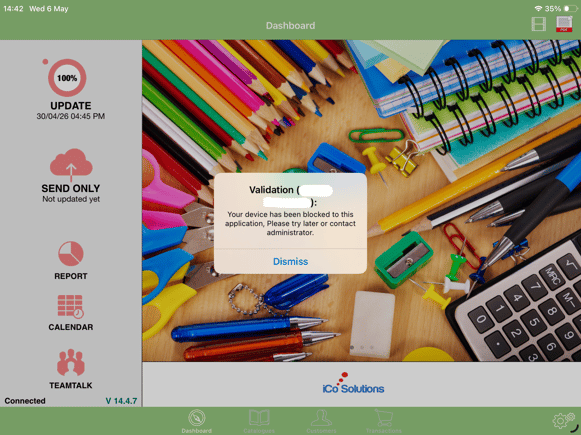
Click on the "Dismiss" button.
You can then either contact support at +44 203 150 0217, create a new ticket, or reply to the email that you have open with them, as Support needs to unblock the account.
Here is an article to assist with logging a support ticket:
How to log a mSeller Support Ticket
Once your device is unblocked and you can access the application, the next step would be to allow the notification permissions. You will be prompted to do this as you open the application.
From here, you can press on the 'Update' icon on your dashboard to allow the mSeller app to download all items from the mSeller server. This includes your company's customers, products, and images. 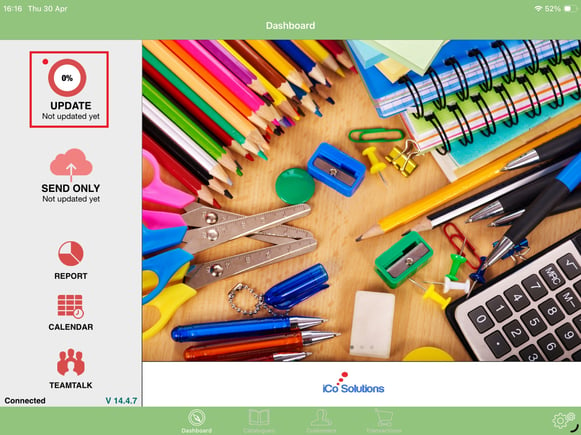
You should receive a message once the app has downloaded all the items successfully.
You are now set up, logged in and ready to go!