Step 1: From Skynamo's web interface select the report tab on the menu which will open all the standard reports available.

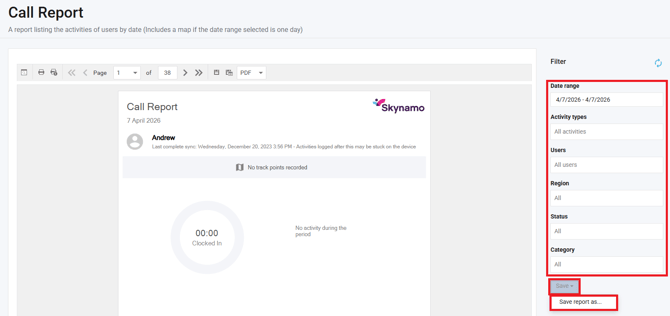
Step 2: Select the specific report you want to automate. I am using the call report as an example

Step 3: Use the filters accordingly then click "Save" -> "Save report as..."
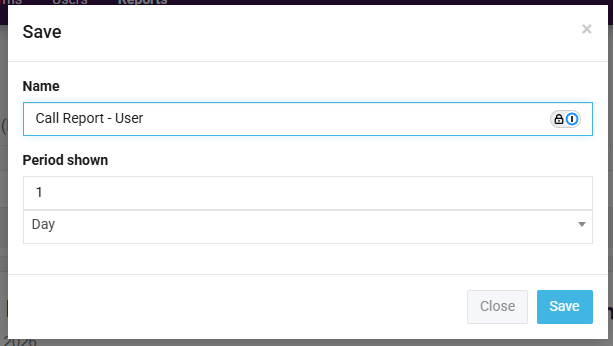
Step 4: Provide the report with a unique name and "Save".
Please note: for the "Period shown", 0 reports on the current period, and 1 reports on the previous period. For example, if you select "1" the report will send the previous day's activities.
Please note: for the "Period shown", 0 reports on the current period, and 1 reports on the previous period. For example, if you select "1" the report will send the previous day's activities.
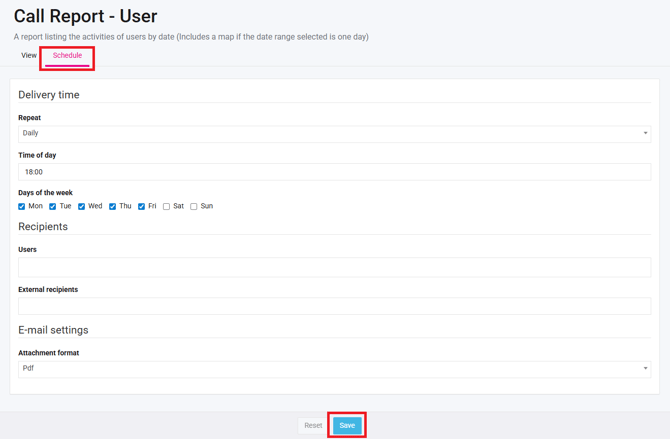
Step 5: You can set the Delivery time and the Recipients for this schedule as you would prefer it to have the information supplied to you when needed. If more than one external recipient should receive the report, you can separate their email addresses with a comma (",").
Remember to always Save after making the necessary changes.