
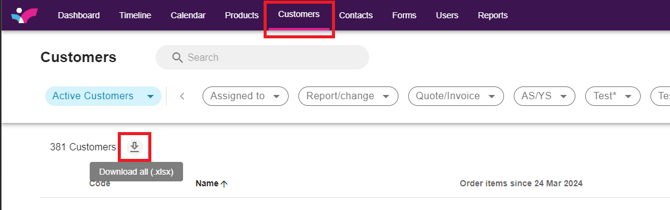
#1: On your Skynamo web interface, navigate to the Customers tab
#2: Click the Download button:
#3: Open the Excel file that downloads and click Enable Editing at the top
#4: Delete all of the Columns except for the "Code", "Name" and "Assigned Users" columns:
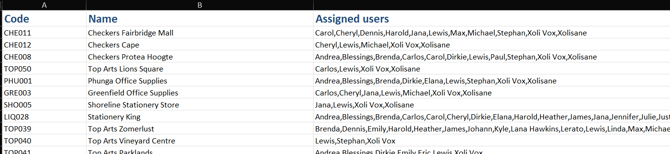
#5: Work through the file and delete all of the customers the user should not be assigned to.
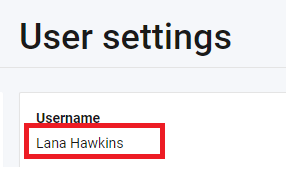
#6: Now to assign your user, select cell D2, and enter a "," and the user name of the user you wish to assign as in the screenshot below. Please note the users USERNAME needs to be added here.
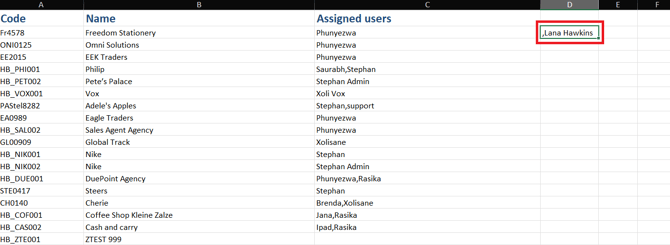
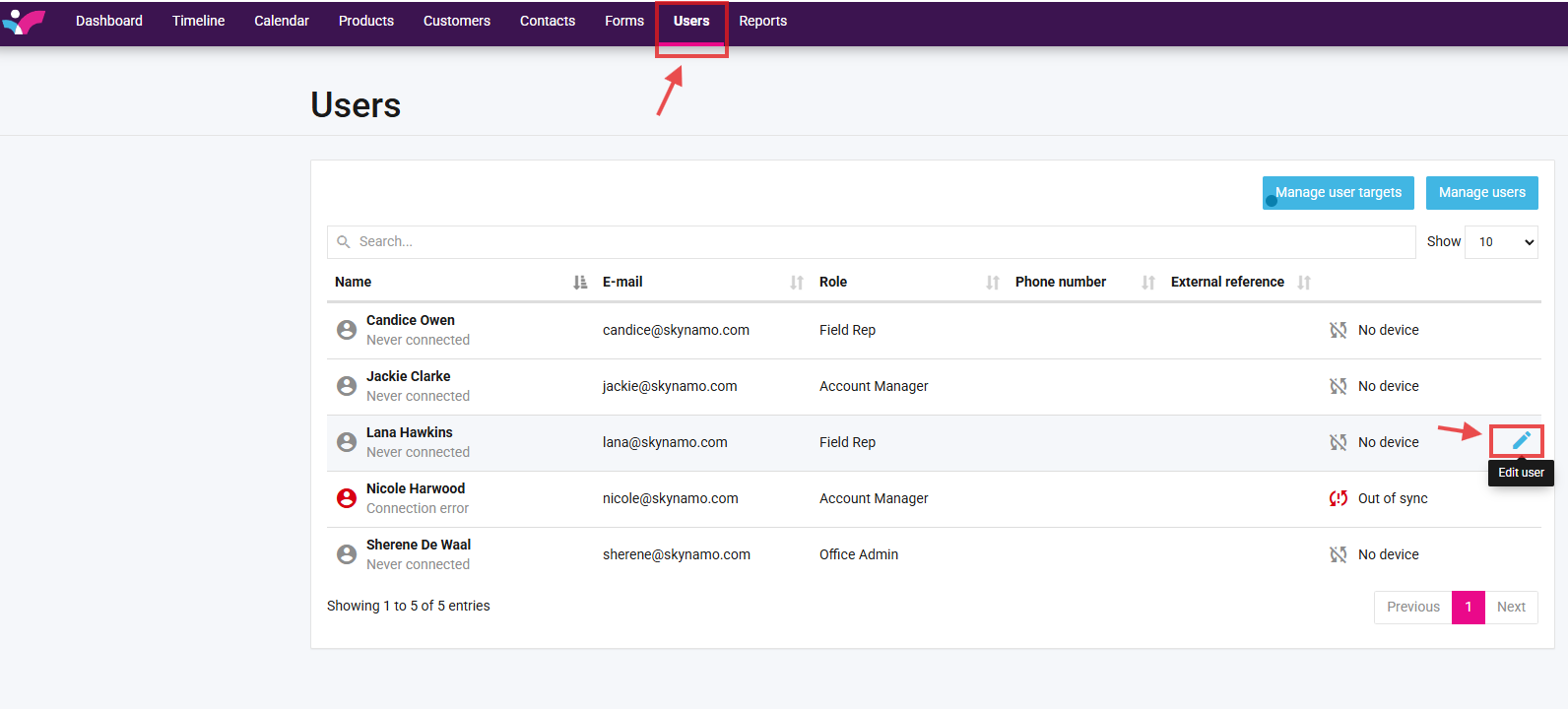
Please note: The username you add should be precisely the same as it is set up under the Users tab. Please see the screenshots below as to where this can be located.
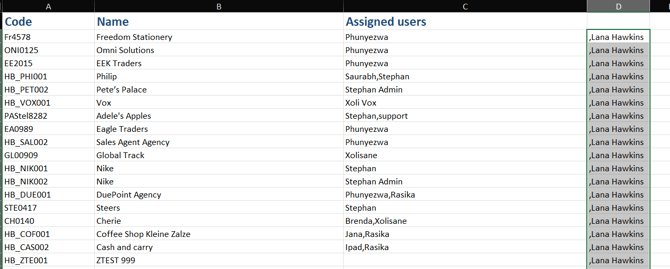
#6: Navigate back to the excel file, and double-click on the bottom right corner of cell D2, to populate the whole column with the user you wish to assign.

It should then populate the whole of column D except the first block:
#7: Select cell E2 and type the following "=C2&D2" and press "Enter".

#8: Then double-click on the bottom right corner of cell E2 to populate the whole column.
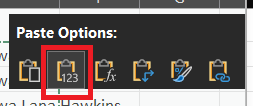
#9: Right-click on the selected cells and click on "Copy", then right-click again and Paste as values.
#10: Copy this cell's data and paste it into Column C under "Assigned Users".
#11: You can now delete Columns D and E and Save the Excel file.
#12: On Skynamo's Customer page, click the import customers icon:

#13: Click Browse, select the newly updated Excel file and then click File Select -> Import Customers