
This article will take you through linking your customer fields from your ERP to Skynamo. This is specifically for integrations that are on the Integration Marketplace.
You must already have created these customer fields in Skynamo before you map them.
How to edit Customer Fields
Step 1: Navigate to the Integration Marketplace by selecting Settings -> Integration Marketplace
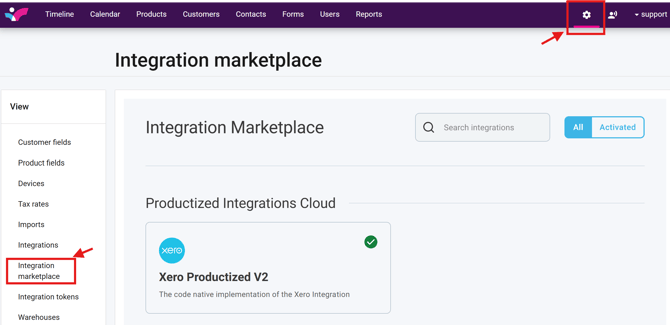
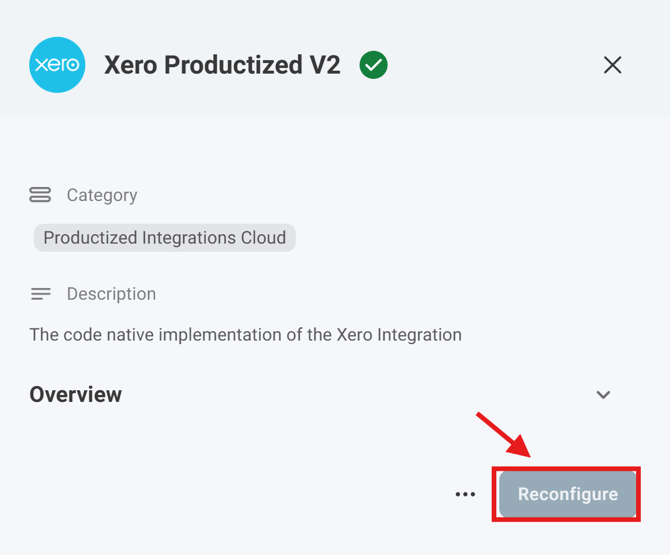
2. Select your ERP & then select "Reconfigure"
Please note: If you are integrated with Xero, Xero will show up; if you are integrated with Sage, Sage will show up.
Step 3: Keep pressing "Next" until you get to the "Customer Custom Field Mapping" page

Step 4: Select "Add to Customer Custom Field Mapping" and map the fields accordingly.
The first column is for the fields in your ERP - the second column is for the fields created in Skynamo. Adding a description is optional.

Step 5: Once you have mapped the necessary fields, click "Next" until you get to the "Finish" button - then select "Finish"

Once completed, the mapped fields will display your ERP information.