Skynamo’s Business Central / Navision integration uses web services to exchange data between Business Central / Navision and Skynamo.
Below is an overview of the requirements to set up the integration.
Business Central 13 or newer
If you are using Business Central 13 or newer, Skynamo provides an extension app that creates the required web service objects.
The .app file is available here: https://services.skynamo.com/
Please download the Microsoft Dynamics 365 Business Central/Navision Extension App.
Your Business Central partner should be able to publish and install the app in your Business Central environment.
Once the app has been installed, the required web service objects must still be published in Business Central before Skynamo can connect to them.
On-prem Navision or older Business Central versions
If you are using on-prem Navision or an older version of Business Central, your Navision partner will need to make the required web services available and provide Skynamo with the object names.
This can be done in one of two ways:
- Import the FOB file
The FOB file is available at https://services.skynamo.com/.
Please be aware of object ID conflicts before importing the FOB file. We recommend that a NAV partner assist with this process. - Create or publish the required pages manually
Standard pages can be made available where applicable. Please refer to the required page numbers and names below.
Please note that stock levels require a custom object. If this needs to be created manually, Skynamo can provide the required .al file structure.
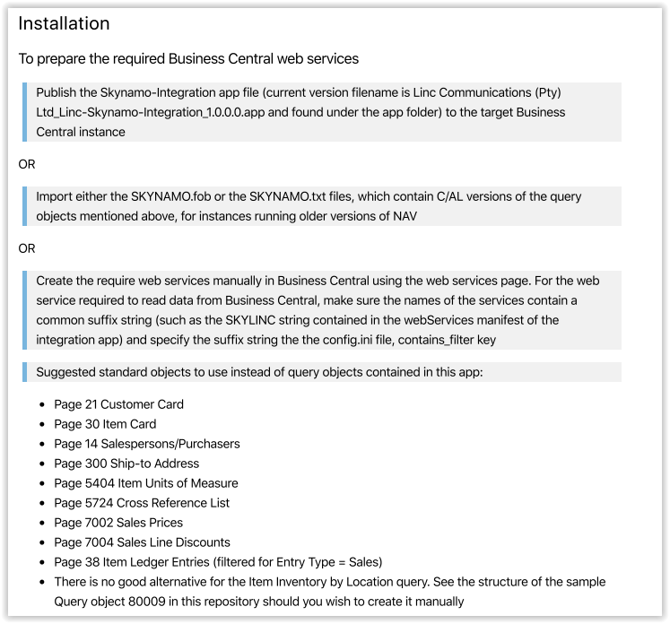
For Orders, Skynamo provides a preferred object on https://services.skynamo.com/. This should be used instead of the standard Sales Order page in NAV, as it includes the Sales Order Line table in the same object.
Once the required objects have been published, please provide Skynamo with the OData V4 URLs for the relevant endpoints.
Please note: the Orders object must be published using SOAP.
Important note about SOAP publishing in Business Central
For the Skynamo integration to process orders correctly, the required Orders object must be published as a SOAP web service.
In some newer Business Central environments, Microsoft may prevent Microsoft UI pages from being published as SOAP web services by default.
Please ask your Business Central partner to check Feature Management and ensure that the following feature key is turned off:
Feature: Disable SOAP web services on Microsoft UI pages
If this feature is enabled, the required SOAP web service may not be available for Skynamo to use.
Authentication details required
The authentication method depends on your Business Central / Navision environment.
Web-hosted Business Central
For newer, web-hosted Business Central environments, Skynamo uses OAuth2 authentication.
We will require the following details:
- Tenant Number
- Client ID
- Client Secret
Locally hosted Business Central / Navision
For older, locally hosted Business Central or Navision environments, Skynamo usually uses Basic Authentication with a Web Access Key.
We will require the following details:
- Username
- Web Access Key
If Business Central is domain-hosted, a domain user may be required for authentication.
Sending credentials securely
Please do not send usernames, passwords, client secrets, or web access keys via email.
These details should be submitted through Skynamo’s secure messaging portal:
[Insert secure messaging portal link]
You can enter any additional or unspecified details in the comments/message field. The portal stores the information securely, so the formatting does not need to be perfect.
Skynamo will provide you with a secret key to use when submitting the details.
Details to complete on the secure messaging page
Please complete the following fields:
- ERP: Business Central or Navision
- Skynamo Customer Name: Your Skynamo instance name or URL
- ERP Username: Navision username or OAuth Client ID
- ERP Password: Navision Web Access Key or OAuth Client Secret
- ERP Company Name: The relevant company name, if Skynamo should connect to a specific company in Business Central / Navision
- ERP URL: Order SOAP URL
- Message: Any additional details or notes
- Skynamo-provided secret key: Provided by the Skynamo support team
Custom fields or additional data
The objects described above form part of Skynamo’s standard Business Central / Navision integration.
If you require custom fields, additional endpoints, or additional pricing structures, such as campaigns or special pricing rules, these will need to be made available through web services as well.
Please provide Skynamo with the relevant endpoint URLs and object names so that we can review whether they can be included in the integration.